Quick summary: Paste
https://api.modernengineer.dev/mcpinto Claude or ChatGPT, sign in to modernEngineer and choose Allow. From then on you ask in plain words ("find me posts on writing prompts for agents") and the assistant searches, reads and answers from modernEngineer, with links to the posts. No API key to create, no config file to edit.
The MCP page covers coding tools such as Claude Code, Codex and Cursor. This guide is for you if you only chat with Claude or ChatGPT and have never touched a config file.
What MCP is, and what you get
MCP (Model Context Protocol) is how an AI assistant such as Claude or ChatGPT calls an outside service. Connecting modernEngineer over MCP gives your assistant a set of tools for the library, so it works from the posts instead of guessing from what it already knows.
Once connected, you can ask the assistant to:
- Find posts by what they say, not only by title, then summarize them with links.
- Read a guide in full and walk you through it step by step.
- List the posts in a series in reading order.
- Explain why a post is locked for you, quote the Pro plan and create a bank-transfer order. You still make the transfer yourself.
- Redeem a Facebook claim code, or change your default reading language.
What you need
- A modernEngineer account. If you don't have one, sign up with your email. A free account can already search; reading Pro posts in full needs a subscription.
- A Claude or ChatGPT account that can add outside connections (see each section below).
- The modernEngineer MCP address, the same for both:
https://api.modernengineer.dev/mcpYou need no client ID, client secret or API key. The assistant registers itself with modernEngineer; you only sign in and choose Allow.
Option 1: Claude (claude.ai and Claude Desktop)
Claude calls an outside connection a custom connector. According to Anthropic's help center, every plan can add one, and the Free plan is limited to one custom connector. The connector belongs to your Claude account, so adding it on the web also makes it available in Claude Desktop.
- Open claude.ai (or Claude Desktop) and sign in.
- Go to Customize › Connectors. Older versions put this under Settings › Connectors.
- Choose + Add, then Add custom connector.
- Fill in:
- Name: modernEngineer (only you see this, in your connector list). - URL: https://api.modernengineer.dev/mcp
- Choose Continue. Claude detects that modernEngineer uses OAuth sign-in. Keep the defaults:
- Authentication: Sign in now. - OAuth client: Use Claude's published identity (Recommended). - Request headers: leave empty.
- Choose Add. A new window opens the modernEngineer sign-in page.
- Sign in (skip this if you are already signed in), read the permission screen and choose Allow.
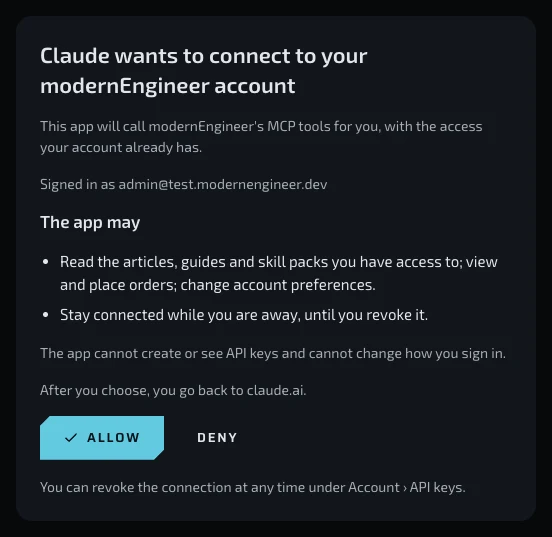
- The window returns to Claude. modernEngineer now shows in your Connectors list.
The sign-in and permission pages follow your browser's language, so they may show in Vietnamese. Cho phép means Allow and Từ chối means Deny.
On Team or Enterprise plans, only an Owner (or someone with permission to manage connectors) adds a connector for the organization, under Organization settings › Connectors › Add › Custom › Web. Each member then goes to Customize › Connectors, finds modernEngineer and chooses Connect.
Turn the connector on in a chat
Claude lets you turn each connector on or off per conversation:
- Start a new chat.
- Choose the + button at the lower left of the message box, then Connectors.
- Switch modernEngineer on.
The first time the assistant calls a tool, Claude may ask whether to allow it. Allow it once or always, as you prefer.
Option 2: ChatGPT
ChatGPT calls an outside connection an app or plugin. According to OpenAI's help center (November 2026):
- Business, Enterprise and Edu plans get full support. On Business, only admins or owners create and publish apps for the workspace.
- Pro can connect, but read-only: the assistant can find and read posts, but cannot create orders or change preferences.
- It works on ChatGPT on the web only, not in the mobile apps.
- OpenAI's help page does not mention the Free, Go or Plus plans. If you don't see the options below, your plan doesn't support them yet.
The steps:
- Open chatgpt.com in a browser and sign in.
- Go to Plugins, choose the + button, then Add custom MCP server.
- Set Name to
modernEngineer. Description can stay empty. - Under Connection, paste
https://api.modernengineer.dev/mcp. - For authentication, choose OAuth.
- Read the risk warning, choose I understand and want to continue, then Create as a plugin.
- ChatGPT opens the modernEngineer sign-in page. Sign in, check the permission screen (the same as in Option 1, naming ChatGPT) and choose Allow. The window returns to chatgpt.com.
- ChatGPT shows the tools it found. Confirm to finish.
If your workspace still uses the older screens, the path is Settings › Apps › Create (or Workspace settings › Apps › Create for admins): enter the URL, choose OAuth, choose Scan Tools, sign in and allow, then Create.
Use the app in a chat
Type @ in the message box and pick modernEngineer. ChatGPT only uses the app for the message that mentions it, so type @modernEngineer again when a follow-up needs fresh data.
What to ask
You don't need to know any tool names. Ask in plain words and mention modernEngineer so the assistant knows to use the connection:
- "Find posts on modernEngineer about reviewing code that agents wrote, summarize each in two sentences with a link."
- "Read the modernEngineer guide on installing AgentKit over MCP and walk me through it step by step."
- "Which posts are in the AgentKit skills series on modernEngineer, in reading order?"
- "Why can't I read this post on modernEngineer? Quote me the Pro plan."
- "Redeem this Facebook code for me: ABCD-1234." (use the real code you received)
- "Set my default reading language on modernEngineer to English."
The assistant answers from the posts and links them so you can open the full version on the web.
Your account decides what the assistant can read
The assistant uses exactly the access of the modernEngineer account you signed in with when you chose Allow:
| Account | The assistant can |
|---|---|
| Free | See the catalog and the opening of every post, search titles, summaries, tags, headings and openings (not the full text), check your access, quote prices and create orders, redeem Facebook codes, change your reading language. |
| Subscriber (Pro) | Also: search the full text and read every Free and Pro post in full, download the files that come with guides, open illustrations. |
| One guide bought on its own | Also: search and read that guide in full and download its files. |
The assistant cannot pay for you, create or see API keys, change your email, password or sign-in method, or read posts your account has no access to.
When something goes wrong
| What you see | Usual cause | What to do |
|---|---|---|
| No Add custom connector (Claude) or Add custom MCP server (ChatGPT) | Your plan or organization doesn't allow outside connections | Check the plan notes above. On Team, Business or Enterprise, ask an admin to add it. |
| You choose Add but no sign-in page appears | The browser blocked the pop-up | Allow pop-ups for claude.ai or chatgpt.com and try again. |
| The permission screen shows the wrong email | The browser is signed in to a different modernEngineer account | Choose Deny, sign out on modernengineer.dev, sign in to the right account and connect again. |
| The assistant answers without using modernEngineer | The connector is off for this chat | Claude: + › Connectors, switch modernEngineer on. ChatGPT: type @modernEngineer. Say "on modernEngineer" in your question. |
| The assistant says you have no access to a post | It is a Pro post and your account has no subscription | Ask "why can't I read this post" for an explanation, or see the subscription. |
| You subscribed but the assistant still says locked | You connected with a different account from the one that paid | Check the email on the API keys page, revoke the connection and connect again with the right account. |
| The assistant says it needs to reconnect | The connection was revoked, or went unused for a long time | Reconnect (Claude: Connect in Connectors) and allow again. |
| ChatGPT cannot create an order | ChatGPT Pro is read-only | Create the order on the modernEngineer pricing page. |
Revoke the connection
You can disconnect from either side:
- On modernEngineer: go to Account › API keys, section Connected apps, and choose Revoke next to the app. The app loses access on its next call.
- On Claude: Customize › Connectors, choose Remove or the three dots next to modernEngineer.
- On ChatGPT: open the modernEngineer app or plugin in settings and remove it.
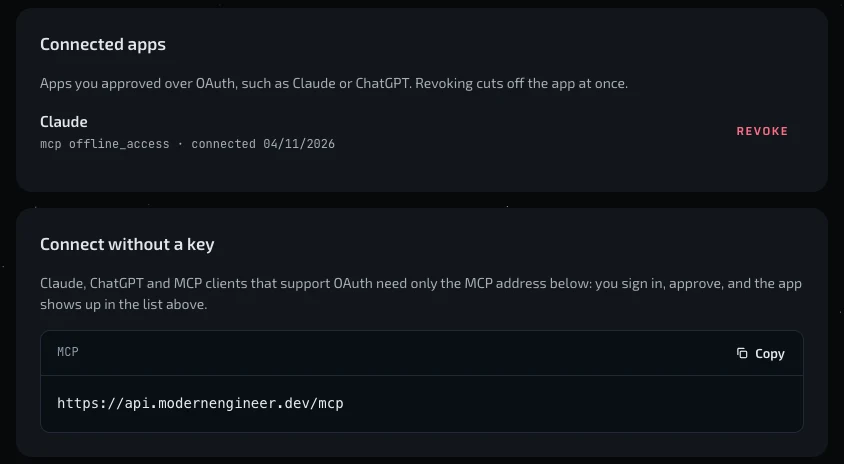
To use it again, connect again with the steps above.
Where your data goes
The assistant calls api.modernengineer.dev directly. modernEngineer receives only the content of each tool call, never your chat history. Your conversation stays with Claude or ChatGPT, under that provider's policy.
If you use coding tools such as Claude Code, Codex, Cursor or VS Code, see the per-client setup on the MCP page.
Use this piece in your agent
Get an API keyCopy the text below and paste it into Claude Code, Codex or whichever agent you use. The agent reads the piece and checks it against the repo you have open.
Read "Connect modernEngineer to Claude and ChatGPT, no coding needed" on modernEngineer and apply it to this repo.
1. Call the content_get tool of the modernengineer MCP server with locale "en", slug "connect-claude-chatgpt-mcp". If MCP is not connected or access is refused, read the page https://modernengineer.dev/en/library/connect-claude-chatgpt-mcp instead.
2. Summarize the main steps of the piece and point out which apply to this repo.
3. Propose concrete changes and ask me before editing any file.
Connect MCP in Claude Code (once)
claude mcp add --transport http modernengineer \
  https://api.modernengineer.dev/mcp \
--header "Authorization: Bearer <API key>"This piece is open to everyone: without MCP, the agent can still read it straight from the link.
- Version
- v1.0.0
- Updated
- 04/11/2026
- Licence
- All rights reserved
- Slug
- connect-claude-chatgpt-mcp