Interactive version
This piece comes with an interactive page: diagrams, scenarios and sample sessions. The link is created fresh on every click.
Quick summary: Herdr keeps coding agents running in a background server on your machine, while your terminal, another laptop, or your phone is just a window that attaches to it. Close the terminal or lose SSH and the agents keep going. The sidebar tells you which one is waiting on you. To drive it from your phone, SSH into that machine over Tailscale and run
herdr.
One or two coding agents in terminal tabs is fine. Once you have three or four agents across several projects, you start flipping through tabs to find the one asking for permission, and closing the wrong window loses the whole session. Herdr fixes exactly that: processes live on the server, and you only "look in" through a client.
The commands, config, and per-OS support in this post follow the official Herdr docs as of my review in October 2026. Herdr ships new releases quickly, so when a command does not work, check the official docs first.
This is part 1 of the Herdr series. I start with why it pays to separate where agents run from where you watch them, then cover the mechanism behind it, install and the config I suggest, the SSH path over Tailscale for driving it from your phone, and finally the gaps in this setup. Part 2 builds on that so agents can orchestrate other agents.
Separate where agents run from where you watch
Two questions are worth asking. When you close the laptop, drop the connection, or walk out with your phone, do your agents keep running? Can you tell at a glance which one needs you?
According to herdr.dev and the official agent guide, Herdr answers that with a background server that owns real terminal processes, in the same spirit as tmux, plus a TUI client (written in Rust) that attaches and detaches. Panes keep running when you close the terminal or drop SSH. Herdr detects agent processes in panes and shows their status in the sidebar.
Herdr has a CLI and a local socket API (Application Programming Interface) so scripts or other agents can drive it. It is also fully mouse-driven: click panes, tabs, and workspaces, drag splits, open right-click menus. You do not have to learn keybindings.
The official X account @herdrdev sums up the idea in one line:
"herdr isn't an app. that's by design. it's a runtime for your coding agents."
A concrete picture: on a Mac Mini at home, you run herdr, start Claude Code in a pane, and hand it a task. You close the terminal window and go out for lunch. On your phone, you SSH into the Mac Mini, run herdr, and see that same pane with the agent still mid-turn. The condition is that the machine stays awake and online: a MacBook with the lid closed goes to sleep and takes the agent down with it.
So it also helps to be clear about what Herdr does not do:
- It is not an IDE or editor and does not replace VS Code or Cursor.
- It is not a SaaS (Software as a Service) that runs agents in the cloud. The compute is your machine by default, or one you rent.
- The phone does not run agents; it is only a client window.
- Herdr does not replace models or providers. Claude Code, Codex, Pi, OpenCode, and Hermes remain their own agent CLIs.
- It differs from tmux by adding agent status, integrations, a socket API, and plugins.
Next to the tools it often gets compared with:
| Tool | Role | Fits when |
|---|---|---|
| tmux, zellij | Keep shell sessions | You only need shell sessions, not agent status |
| cmux | Native macOS multi-agent terminal | You prefer a GUI |
| Termius, moshi | SSH apps on your phone | You need a window into Herdr |
| Tailscale | Private network between your devices | Your phone needs to reach a home machine or VPS without exposing SSH to the internet |
| Docker, Vercel Sandbox | Narrow how much of the host an agent can touch | You want isolation; how safe it is depends on the mounted directories and permissions you grant |
The server owns panes; the client is only a window
Before installing, it helps to see how the layers stack. This is what keeps you from being surprised when an agent "disappears" after a server shutdown.
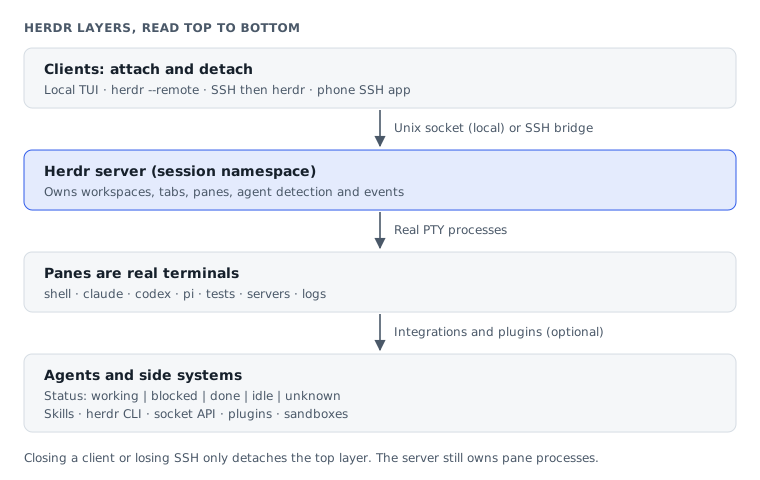
The server owns panes and process state. The client only draws the interface and takes keyboard and mouse input. You detach with ctrl+b then q (the default prefix). Locally, the client talks to the server over a Unix socket. Remotely there are two ways:
herdr --remote <host>: the client runs on your machine and connects to the server over SSH. Because the client is local, Herdr can carry clipboard images from your machine to the remote one.ssh hostthenherdr: everything runs on the remote machine like tmux, which suits a phone.
Work is organized in four levels:
- A session is a separate background server. Most people only need the default one.
- A workspace is a container for a project, repo, or investigation. Each active project should get one workspace.
- A tab is a layout inside a workspace, such as
agents,logs,server,review. - A pane is a real terminal, split right or down, and the stable unit to drive from the CLI.
Named sessions (herdr session attach work) are fully separate: their own panes, socket, and state, sharing only the config file. This is separation at the Herdr state level, not filesystem permissions or secrets; to isolate data between clients, use separate users or machines. Otherwise prefer workspaces.
Herdr detects agents from three sources: the main process in the pane, screen manifests (rules for reading the bottom of each agent's screen), and optional integrations. When an integration reports state, Herdr uses that report instead of reading the screen. The result is five states:
| State | Operational meaning |
|---|---|
working | The agent is running a turn |
blocked | The agent needs input, approval, or a decision: it needs you |
done | The agent finished but you have not looked yet |
idle | The agent finished or is waiting, and has been seen |
unknown | Herdr cannot classify it reliably; run herdr agent explain or install an integration |
Viewing a done pane on a client turns it idle (each client tracks what it has seen). So a script waiting on an agent should accept both done and idle after it has seen working. The Herdr docs also treat both as ready for new input.
The most important thing to remember is what survives each kind of interruption:
| Situation | Process still running? | Agent conversation |
|---|---|---|
| Detach and reattach | Yes | Kept, because the process never stopped |
Server restart, or herdr server stop then start again | No, the layout is rebuilt with fresh shells | Only if the integration supports native session restore |
herdr update --handoff (experimental) | Tries to keep it, not guaranteed | Kept if the handoff succeeds |
The two related keys live in the config:
[session]
resume_agents_on_restore = true   # default

[experimental]
pane_history = false              # default false; history can contain secrets
pane_history saves pane screen contents to show again after a restart. The docs leave it off by default because output can contain tokens, prompts, or secrets. Only turn it on if you accept treating the config directory like terminal history.
When an agent runs inside a pane, Herdr sets HERDR_ENV=1 along with HERDR_PANE_ID, HERDR_TAB_ID, and HERDR_WORKSPACE_ID. The official herdr skill and the community herdr-agent skill rely on these so an agent does not act on the wrong pane. Part 2 uses them heavily.
Install and run your first agent
On Linux and macOS, the official script is the shortest path:
curl -fsSL https://herdr.dev/install.sh | sh
herdr --version
You can also use brew install herdr or mise use -g herdr. Nix and manual binary downloads are covered in docs/install. On Windows (PowerShell):
powershell -ExecutionPolicy Bypass -c "irm https://herdr.dev/install.ps1 | iex"According to the docs at review time, native Windows is usable but still has its own limits (for example, no direct terminal attach). Read Windows support before relying on it.
If you installed with the script, update with herdr update. If you used Homebrew, mise, or Nix, update through that package manager. If your shell cannot find herdr, open a new terminal or check that the install directory is on your PATH.
Herdr does not install agents for you. Before the next step, you need at least one agent CLI installed and signed in on the machine that runs Herdr, for example Claude Code via the official quickstart. Replace my-project with a real project directory:
cd $HOME/code/my-project
herdr
On first run, Herdr creates the default session with one workspace and shows an onboarding screen. In the pane, start the agent you installed (claude, codex, pi, opencode, or another agent Herdr supports), and the sidebar shows its status.
Then try the loop that matters most: detach with ctrl+b then q (or close the terminal), run herdr again, and see the agent still there. Use herdr server stop only when you deliberately want to shut down every pane.
Keybindings are optional. The default prefix is ctrl+b, like tmux: press ctrl+b, release, then press the action key. A few worth knowing:
copens a new tab.vandminussplit a pane.h/j/k/lmove between panes.wswitches workspaces,zzooms a pane,qdetaches.prefix+?opens a table of every active key.
Next, install integrations for the agents you actually use:
herdr integration install claude
herdr integration install codex
herdr integration status
The list also includes pi, hermes, and opencode. Integrations do different things per agent. For Claude Code, the integration adds native session restore (resuming the right conversation after a server restart), while status is still read from the screen. For Pi or OpenCode, the integration also reports status directly to Herdr. The full table is on Agents.
If you want an agent to walk you through these steps, the Herdr docs suggest pasting this prompt into the coding agent you already use:
Help me understand and set up Herdr.
Read https://herdr.dev/agent-guide.md first, then walk me through it step by step.
The config I suggest
Herdr runs without a config file. Only when you want to change keys, theme, sidebar, or notifications do you create a starting file, edit it, and reload it into the running server without losing panes:
herdr --default-config > $HOME/.config/herdr/config.toml
# after editing:
herdr server reload-config
The file lives at $HOME/.config/herdr/config.toml on Linux and macOS and %APPDATA%\herdr\config.toml on Windows. herdr --help shows the actual path, and the HERDR_CONFIG_PATH variable overrides it. On invalid values, Herdr falls back to safe defaults and warns at startup instead of crashing. Most interface settings apply right after a reload; a few settings read only at startup still need a server restart.
This is the skeleton I suggest for daily use. onboarding = false is a top-level key, so put it at the top of the file, before any [...] table. If your file already has these tables (for example, generated by --default-config), edit the values in the existing tables instead of pasting duplicate ones:
onboarding = false

[terminal]
# default_shell = "zsh" # uncomment only if this shell is installed; executable name or path
new_cwd = "follow"      # follow | home | current | path (e.g. "~/Projects")

[keys]
prefix = "ctrl+b"

[theme]
name = "catppuccin"   # default; other examples: tokyo-night, gruvbox, terminal

[ui.toast]
delivery = "herdr"    # herdr | terminal | system | off (default: off)

[session]
resume_agents_on_restore = true
new_cwd = "follow" makes new panes, tabs, and workspaces take their directory from the source pane or workspace, falling back to $HOME when there is no source. A --cwd passed through the CLI or socket API still wins over this setting.
Notifications are off by default: at the machine, choose delivery = "herdr"; over SSH, choose "terminal", because that mode asks the outer terminal to raise the notification. It only shows when that terminal supports it and is still connected; it is not a push notification to your phone.
When your custom keybindings drift from a newer Herdr release, herdr config reset-keys backs up config.toml, removes the [keys] and [[keys.command]] sections, and Herdr uses the new default keymap after a restart or reload. Theme, notifications, and sidebar are left alone. A [[keys.command]] block is where you bind a key to a command, for example opening lazygit in a popup, provided that program is installed.
The sidebar is where you answer "which agent needs me". The expanded desktop sidebar draws each sub-array in rows as one line. The default layout now includes a machine token for when you connect several machines:
[ui.sidebar.agents]
row_gap = 0
rows = [
  ["state_icon", "machine", "workspace", "tab"],
  ["agent"],
]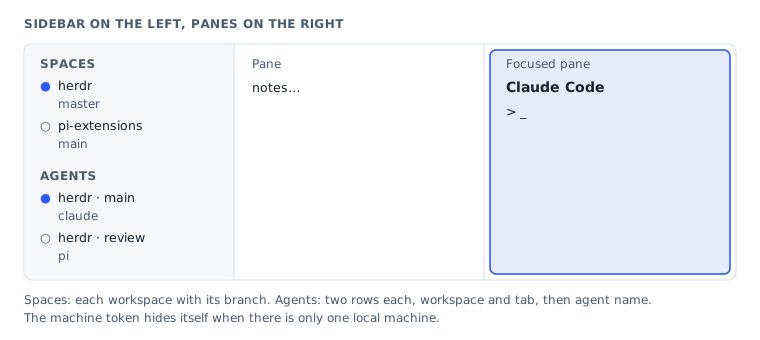
With a single local machine, the machine token hides itself, so each agent shows two rows: workspace and tab on top, agent name below. You can:
- Add
state_textto show words likeworkingorblocked. - Set a per-agent layout with
rows_by_agent(it replacesrowsrather than merging). - Show your own metadata through a
$nametoken that a script reports withherdr pane report-metadata.
The token list and style rules are in Sidebar row layouts.
Driving it from your phone over Tailscale
The Herdr docs are clear: no mobile app or web dashboard is needed, just an SSH client that reaches the machine running your agents. Following that approach, a home machine or VPS both holds the code, git, secrets, and agent CLI logins and runs the Herdr server with the agent processes. Tailscale joins every device into a private network, and the phone is only a window.
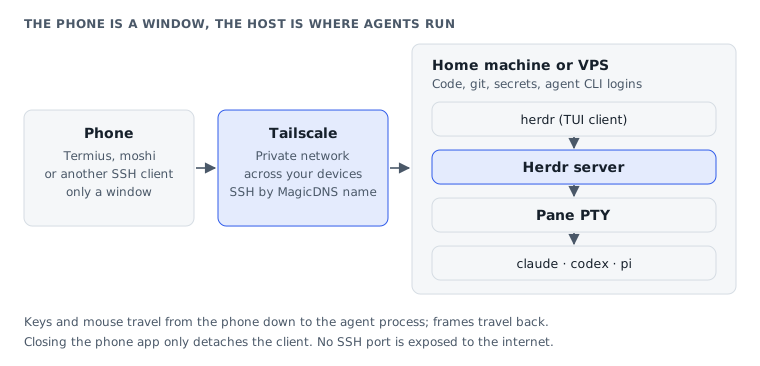
On the host
On the host (Mac or Linux), install Herdr, install and sign in to your agent CLIs, and install integrations as above. Then:
- Install Tailscale and sign in with the same account you will use on your phone.
- Check that MagicDNS is on in the admin console, so you can reach the machine by a name like
dev-boxinstead of an IP.tailscale statusandtailscale ip -4show whether the machine has joined the tailnet. - Turn on the SSH server: on macOS it is System Settings, General, Sharing, Remote Login. On Linux, install and enable
sshd.
This post uses OpenSSH over the Tailscale network: the machine's normal SSH server, key-based auth, reachable only inside the tailnet. Tailscale SSH is a different option: Tailscale takes port 22 on the tailnet IP and authenticates with your Tailscale identity instead of SSH keys, and the server side only runs on Linux or the open-source tailscaled build on macOS. If you choose that, follow the Tailscale SSH docs and skip the SSH key steps below.
Then set up an always-on session right on the host: cd into the project, run herdr, start agents, split panes, hand off long tasks, and detach. herdr status and herdr agent list confirm the server is still alive after detaching. To have the server start at login, use launchd (macOS) or a systemd user unit (Linux). The simpler way is to detach and let the server live with your user session.
SSH keys
With SSH keys, follow this order so you do not lock yourself out:
- Generate a key pair on the device that will connect (phone SSH apps usually have a button for this). The private key stays on that device; only the public key goes to the host.
- Add the public key to
~/.ssh/authorized_keysfor the right user on the host.whoamion the host gives you the user name to enter in the app. - Open a new SSH session with the key and confirm it works. On first connect, the app asks you to accept the host's key.
- Only after key login works, turn off password login.
Do not expose port 22 to the internet; allow access only through the Tailscale interface. Fail2ban and disabling root login are extra hardening, depending on your policy.
On the phone
Install Tailscale (iOS or Android) and sign in with the same account; the home machine shows up in the list. Install an SSH client: on iOS, moshi (named in the Herdr docs) or Termius; on Android, Termux with ssh, or Termius. Add a host with the MagicDNS name or Tailscale IP, the host user, and the private key you generated, then:
ssh you@dev-box
herdr
The Herdr TUI adapts to narrow screens: you can see agents, switch workspaces, and check panes right inside SSH. From another laptop in the tailnet, the thin client fits better, because you get a local interface and can paste clipboard images:
herdr --remote dev-box
herdr --remote dev-box --session agents
According to the docs at review time, herdr --remote works from Linux, macOS, and Windows clients to Linux, macOS, or Windows hosts. To keep several SSH machines in one Herdr window, see Connecting machines.
On a small screen, name agents and panes clearly (reviewer, impl, tests), and use the sidebar and the switch menu (prefix+g) instead of keeping many tightly split panes. When you only need one pane, attach straight to that agent with herdr agent attach <target> (Linux and macOS only).
An agent you started yourself in a pane has no name yet, so the target is the pane ID from herdr agent list. To use a name, set it first with herdr agent rename <pane_id> reviewer, then herdr agent attach reviewer. Pane names and agent names are two different things.
Where this setup still has gaps
Checking the setup above against the mechanism just described, there are a few things you should know before relying on it.
| Gap | What happens | What to do |
|---|---|---|
| Herdr does not keep the machine awake | When the machine sleeps, agents stop and your phone cannot SSH in. Closing a MacBook lid puts it to sleep, and caffeinate by default only prevents idle sleep; it does not keep the machine running with the lid closed. | Use a Mac Mini or desktop that stays plugged in, with idle sleep blocked in Settings or via caffeinate. If you travel a lot, use an always-on VPS. |
| Your phone gets no push notifications | terminal notifications only arrive while the SSH app is open and the terminal supports them. | Open the app again to see which agent is blocked or done. |
| A server restart does not keep processes | herdr server stop or a restart rebuilds the layout with fresh shells, and conversations come back only if the integration supports resume. | While work is running, detach (prefix+q) instead of stopping the server. |
| A container is not a reason to skip permission prompts | According to Docker's security docs, the container can still modify host directories you mount, and anyone who controls the Docker daemon has very broad power on the machine. | Review the mounted directories, secrets, and Docker socket before turning on any mode that skips permission prompts. Do not auto-press Enter when an agent is blocked, because that is usually a trust or login prompt. |
| Everything has to run directly in a pane | tmux nested in a pane means Herdr sees only the tmux process, so the sidebar and wait commands go wrong. A global HERDR_AGENT=... makes every inheriting foreground process count as that agent. Bare herdr while HERDR_ENV=1 is set is blocked by default. | Run agents directly in the pane, and set HERDR_AGENT only for the process that needs it. |
| Windows is still different | According to the docs at review time, Herdr on Windows is usable but has its own limits. | Do not expect it to match Linux and macOS exactly. |
If you extend this to a GPU machine, one combination I find sensible is Tailscale for the network, an SSH client as the window, Herdr to keep sessions alive, and Docker to run agents with a narrower reach, with the container caveats above.
If you hit problems
Most problems come down to one question: does Herdr see the process you think it sees? Start with herdr status (add server or client to check each side) and herdr agent list.
| Symptom | What to check and how to fix it |
|---|---|
An agent does not appear in the sidebar or shows unknown | Run the agent directly in the pane, install its integration, then see how Herdr classifies it with herdr agent explain <target> --json (the target is a pane ID from agent list, or an agent name). herdr integration status --outdated-only shows which integrations need updating. |
| Keybindings do not respond | The OS or the outer terminal has usually swallowed the key combination: see the Keyboard page or change the prefix. |
| A remote connection fails | Try a bare ssh host first and check MagicDNS. For herdr --remote from a laptop with a passphrase-protected key, run ssh-add on that laptop. |
| A wait script times out | Accept both idle and done, and check for blocked. |
To dig deeper, run HERDR_LOG=herdr=debug herdr and read herdr.log, herdr-client.log, and herdr-server.log in $HOME/.config/herdr/ (on Windows, %APPDATA%\herdr\).
What to take with you
Herdr separates where agents live (the server on your machine) from where you look (a client in a terminal, on another laptop, or on your phone). Detaching does not kill agents. Processes stop only when you close a pane, stop or restart the server, or the machine shuts down; when the machine sleeps, agents pause with it.
If you are just starting, I suggest this order:
- Install Herdr.
- Run one agent in a pane.
- Install that agent's integration.
- Try detaching and reattaching.
- Only then set up Tailscale and SSH for your phone.
The Herdr series has two parts:
- Part 1 (this post, open to everyone): what Herdr is, install, config, and driving it from your phone.
- Part 2 (for Subscribers): Herdr part 2: let agents orchestrate other agents in parallel. Once you are comfortable with one machine and a few agents, it shows how to let agents split panes, hand out tasks, wait on each other, and read results, along with sample workflows.
Main sources: herdr.dev, Herdr docs, Configuration and Config reference, Session state and restore, Agent guide, GitHub herdrdev/herdr.
Use this piece in your agent
Get an API keyCopy the text below and paste it into Claude Code, Codex or whichever agent you use. The agent reads the piece and checks it against the repo you have open.
Read "Herdr: a runtime for coding agents you can drive from your phone" on modernEngineer and apply it to this repo.
1. Call the content_get tool of the modernengineer MCP server with locale "en", slug "herdr-complete-guide". If MCP is not connected or access is refused, read the page https://modernengineer.dev/en/library/herdr-complete-guide instead.
2. Summarize the main steps of the piece and point out which apply to this repo.
3. Propose concrete changes and ask me before editing any file.
Connect MCP in Claude Code (once)
claude mcp add --transport http modernengineer \
  https://api.modernengineer.dev/mcp \
--header "Authorization: Bearer <API key>"This piece is open to everyone: without MCP, the agent can still read it straight from the link.
- Version
- v1.0.0
- Updated
- 10/08/2026
- Licence
- All rights reserved
- Slug
- herdr-complete-guide